How to Use AI for Customer Service (Without Sounding Like a Robot)
August 17, 2026
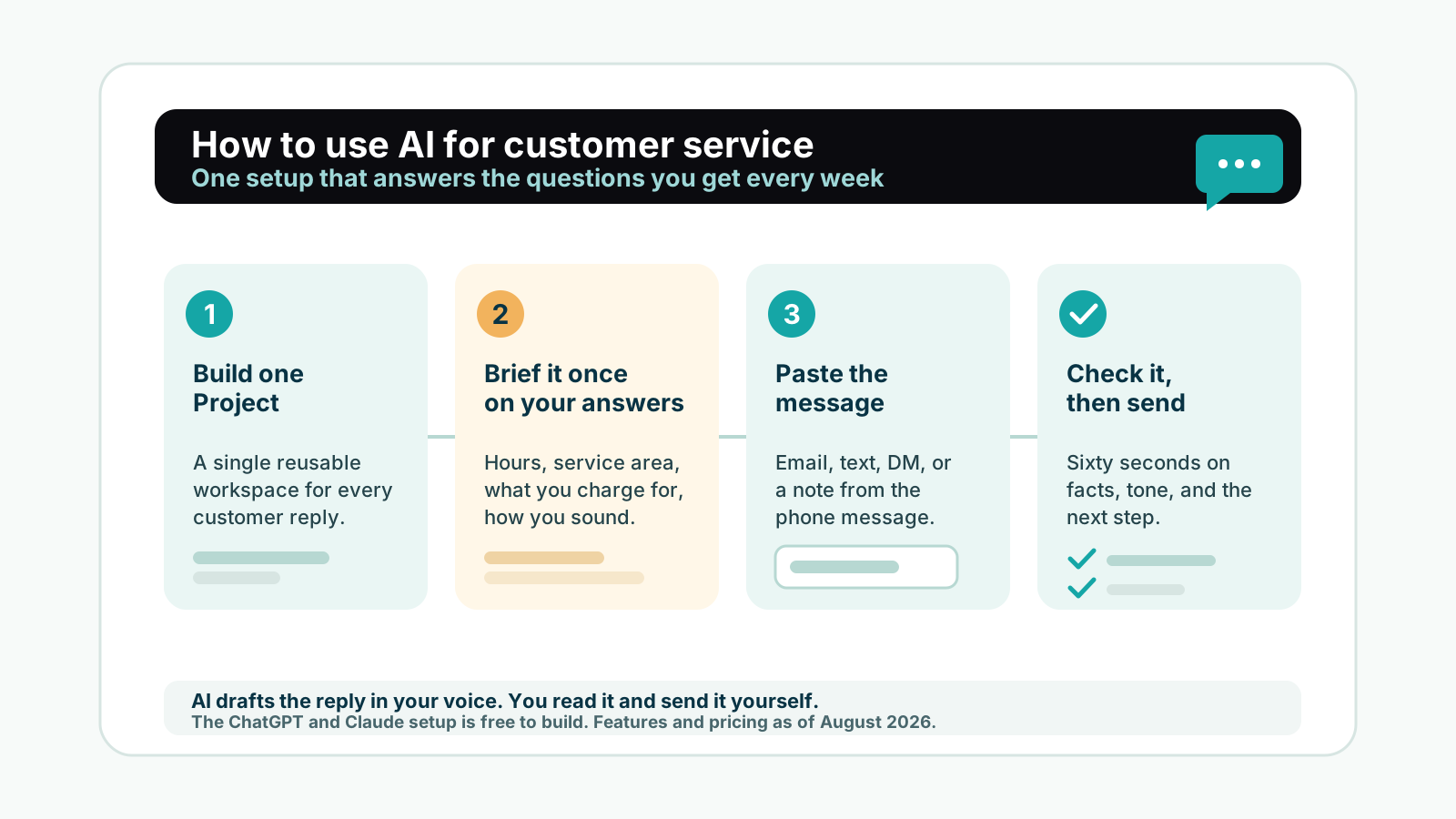
A customer texts at 7:40 in the morning asking whether you cover their town. Someone else emails wanting a ballpark price for a job you have done a hundred times. A third one is upset about a missed window and wants to hear from you today. None of those take long on their own. Together, they are why your coffee goes cold every morning.
Learning how to use AI for customer service does not mean handing your customers over to a bot that talks to them while you are out on a job. It means doing the writing part faster. You set one workspace up once, tell it how your business works, and from then on you paste in whatever the customer sent and get back a reply in your own words. You read it, fix anything that is off, and send it yourself.
This post is the setup, start to finish: what to put in the workspace, three copy-paste prompts, and the one-minute check that keeps a bad draft from going out. If you have never built a reusable AI workspace before, our walkthrough on ChatGPT Projects for small business covers the mechanics, then come back here for the customer service version.
Customer service is one part of a larger work map showing how AI is used across 100 business tasks.
What AI Is Good At Here, and What It Is Not
AI is good at the part of customer service that is writing. It will draft an answer to a question you have answered fifty times, turn your three-word note into a polite paragraph, soften a reply you wrote while annoyed, boil a rambling message down to what the person is asking for, and keep every reply sounding like the same business.
It is not good at anything that needs judgment or facts it does not have. It does not know your calendar, your prices, or what you promised someone last Tuesday unless you tell it. It cannot decide whether to give a refund. And it should never be wired up to answer your customers on its own while you are not watching, because you cannot take a wrong answer back once it has been sent.
So the job here is narrow and worth doing: you keep the decisions, AI does the typing.
Start With the Questions You Answer Every Week
Before you open any tool, write down the questions you answer over and over. There are usually only a handful, and they tend to be some version of these:
- Do you cover my area?
- What does something like this usually cost?
- When could you get out here?
- How do I pay, and when?
- What is included, and what is not?
- Are you licensed and insured?
Now write the honest answer to each one in your own words. Not a polished paragraph, just the way you would say it on the phone. Those answers are the raw material for everything below. If you skip this and expect the AI to guess, you get generic filler, which is what people mean when they say AI writing sounds fake.
Step 1. Build One Customer Service Project
Both major tools have a feature called Projects: a saved workspace that holds your instructions, your reference files, and your chat history in one place, so you do not re-explain your business every time.
In ChatGPT, Projects run on the free plan. OpenAI announced in September 2025 that Projects were opening to free users along with larger per-project file uploads, up to 5 files for Free, 25 for Plus, and 40 for Pro, Business, and Enterprise, and it added project-only memory controls at the same time. That rollout is also covered by AlternativeTo. Those limits are current as of August 2026.
In Claude, Projects are also open to everyone. Per Claude’s help center, “Projects are available to all users, including those with free Claude accounts,” with free accounts capped at five projects, while paid plans get expanded project knowledge. As of August 2026, Claude Pro runs $20 a month billed monthly or $17 a month billed annually per Claude’s pricing page, and ChatGPT Plus runs $20 a month per ChatGPT’s pricing page. For this setup you do not need either one. One project is well inside the free limits.
Create a project and name it “Customer Service.” That single workspace is where every customer reply gets drafted from now on.
Step 2. Write the Instructions Once
Open the project settings and paste this into the custom instructions box, filling in the brackets with your real details. This is the part that takes ten minutes and pays for itself all year.
You help me reply to customers for [BUSINESS NAME], a [TYPE OF BUSINESS] in
[CITY / SERVICE AREA]. I am [YOUR NAME], the owner.

How I sound: warm, direct, and plain. Short sentences. No corporate wording.
I say "thanks for reaching out," not "we appreciate your inquiry." I never
use exclamation points more than once in a message.

What I want in every reply:
- Answer the actual question in the first two sentences.
- One clear next step at the end (book a time, send a photo, call me).
- Under 120 words unless I ask for longer.
- Never invent a price, a date, or a promise. If the answer depends on
  something I have not told you, leave [CONFIRM] in brackets so I fill it in.

Facts about my business:
- Service area: [TOWNS]
- Hours: [HOURS]
- How people book: [PHONE / FORM / TEXT]
- Payment: [METHODS AND TERMS]
- Things I do not do: [OUT OF SCOPE WORK]
That last rule is the important one. Telling it to flag anything unconfirmed with a bracket stops the tool from filling gaps with confident guesses, which is how AI replies get a business into trouble.
Step 3. Feed It Your Real Answers Once
Now take the questions and answers you wrote earlier, put them in one document, and add it to the project as a file. Call it “Common questions and how I answer them.”
Add anything else a new employee would need on their first day: your service menu, your standard terms, the wording you use for deposits, a few replies you were proud of. Keep it to plain text or a simple document. On the free plans described above, you have room for a handful of files per project as of August 2026, which is plenty for this.
This is the “train it on your business once” step. Everything after this is a paste-and-go job that takes under a minute.
Step 4. The Everyday Prompt
For a normal question from a customer, paste this into your project:
Here is a message from a customer. Draft my reply.

Channel: [EMAIL / TEXT / DM / PHONE MESSAGE I TOOK DOWN]
Their message: [PASTE IT]
What I know that they do not: [ANY CONTEXT, e.g. "we are booked until the 3rd"]

Give me two versions: one short, one a little warmer. Mark anything you are
not sure about with [CONFIRM].
Say a customer writes, “Hi, do you do gutter work in Maple Ridge and what would a two-story house run?” The draft that comes back should confirm the service area from your file, give the honest shape of the answer, and stop short of quoting a number you have not seen the house to give. If it quotes a price you never told it, your instructions need one more line, and it is worth going back and adding it.
For messages that need translating, add “reply in Spanish and English.” For a voicemail, type a few notes about what the person said and let the draft come from that.
Step 5. The Prompt for an Upset Customer
This is where AI earns its keep, because it does not have your adrenaline. When someone is angry, your instinct is to explain yourself. That almost never lands. Use this instead:
This customer is upset. Draft a reply that:
1. Acknowledges what went wrong in the first sentence, with no excuses.
2. States only the facts I give you below. Invent nothing.
3. Offers one specific next step and a time.
4. Ends by inviting a phone call with me directly.
Keep it under 100 words. Calm and human, not formal.

Their message: [PASTE IT]
What happened, in my words: [YOUR SIDE, PLAINLY]
What I am willing to do: [FIX / DISCOUNT / RESCHEDULE / NOTHING YET]
Two rules for yourself here. Never let the draft admit fault for something you have not confirmed, and never let it promise money back before you have decided. Write what you are willing to do in the prompt, and the reply stays inside those lines.
If the complaint has already landed on your Google listing, the reply is a different job with different rules, and we cover it in how to respond to Google reviews with AI.
Step 6. The 60-Second Check Before You Send
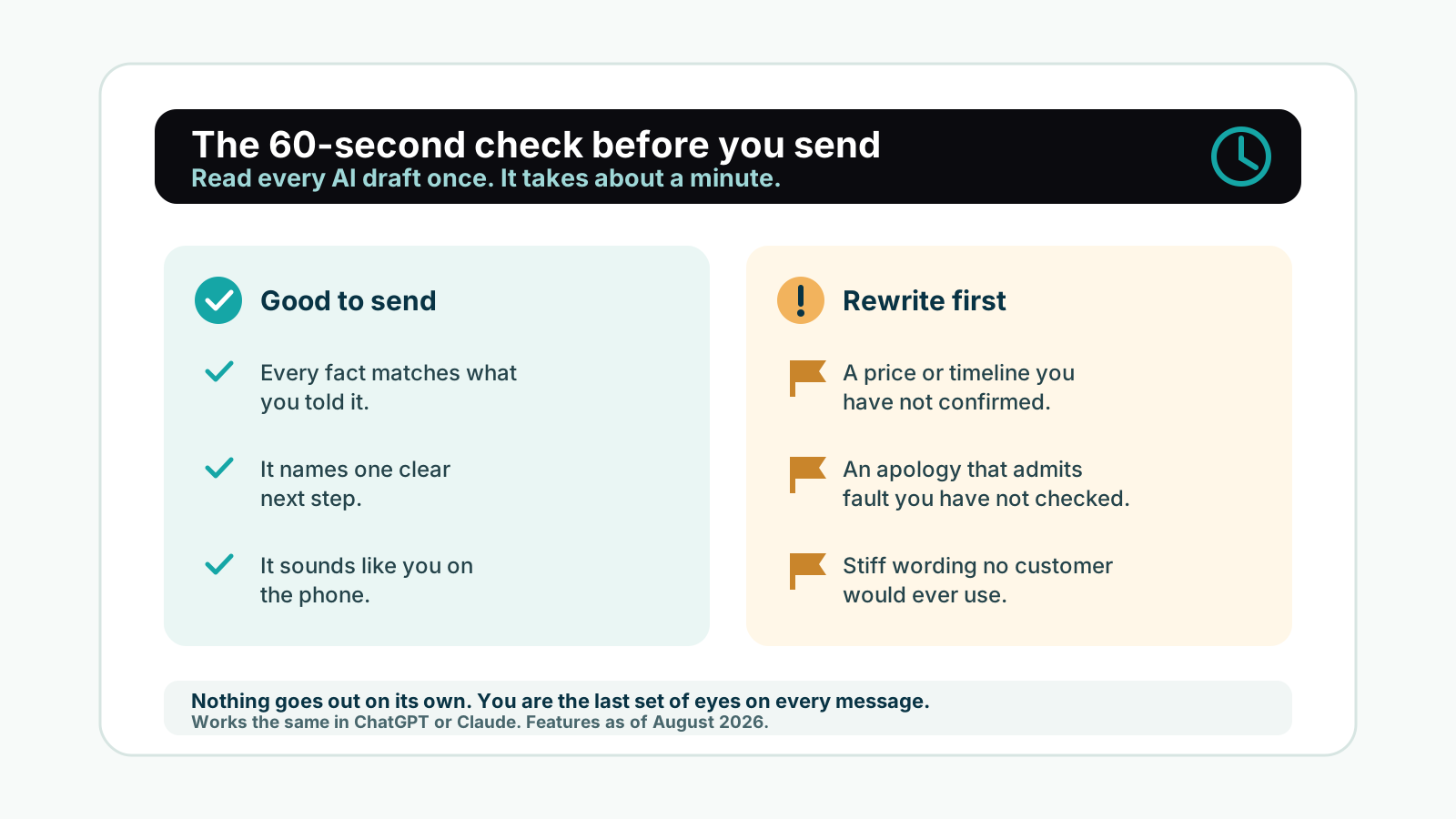
Every draft gets one read before it leaves. Look for four things:
- Facts. Does every date, price, and detail match what you told it? Anything in brackets gets filled in or cut.
- Next step. Is there exactly one thing for the customer to do?
- Voice. Read it out loud. If you would not say it on the phone, change the words you would not say.
- Length. Assume it gets read on a phone. If it takes more than two thumb scrolls, cut it.
That check takes about a minute and it is the whole reason this stays safe. Nothing goes out on its own. You are the last set of eyes on every message.
Where Each Channel Goes From Here
The one project handles all of it, but each channel has its own habits:
- Email. The biggest time sink for most owners, and the one with the most repeat patterns. We break the email side down further in automating customer emails with AI.
- Texts and DMs. Shorter, faster, less formal. Tell the project “text length, no greeting line” and it adjusts.
- Phone messages. Type three lines of notes from the voicemail, paste them in, and send a text or email follow-up before you forget. These are the easiest follow-ups to lose track of and the easiest to win back.
- Public reviews. Different audience, since you are writing for the next person reading, not just the reviewer.
Common Mistakes to Avoid
- Starting a new chat every time. Then you are back to explaining your business daily. Work inside the project.
- Letting it guess. No prices, dates, or promises the tool has not been given.
- Accepting the first draft. One edit in your own words is what keeps replies from sounding stamped out.
- Setting it and forgetting it. When your prices, hours, or service area change, update the project file the same day.
- Trying to automate the send. Draft with AI, send with your own hands and your own eyes.
Frequently Asked Questions
Can AI answer my customers automatically?
It can, with chatbot software wired into your site or inbox, but that is a different project with real risk if it answers wrong. The setup in this post is deliberately manual: AI writes the draft in seconds, you read it and send it. For a business where one bad reply costs you a customer and a review, the minute you spend reading is the cheapest insurance you have.
Do I need to pay for ChatGPT or Claude to do this?
No. As of August 2026, both have a free plan that covers this workflow. ChatGPT Projects are available to free users with up to 5 files per project, per OpenAI’s announcement, and Claude’s help center states that Projects are available to all users including free accounts, capped at five projects. Paid tiers, $20 a month for Claude Pro billed monthly per Claude’s pricing page and $20 a month for ChatGPT Plus per ChatGPT’s pricing page as of August 2026, mainly raise usage limits and file counts.
Which is better for customer service, ChatGPT or Claude?
Either one handles this workflow, and both have the Projects feature you need for it, as of August 2026. If you already use one of them, use that one. If you are starting from scratch, we put the two side by side for business use in ChatGPT vs Claude for business.
Is it dishonest to use AI to reply to customers?
No, as long as the words are true and you are the one sending them. You are not outsourcing the relationship, you are outsourcing the typing. The line to hold is factual: never send something you have not read, and never let a draft say something you would not say yourself.
How do I keep AI replies from sounding generic?
Two things fix almost all of it. First, the voice section of your instructions needs real examples of how you talk, including the phrases you would never use. Second, edit one line by hand in every reply. That single human sentence, about their street, their dog, the job you did for their neighbor, is what makes the message read as yours.
How long does the setup take?
Plan for 30 to 45 minutes for the full build: writing out your common answers, pasting in the instructions, and adding your files. After that, each reply takes under a minute, and you only touch the setup again when something about your business changes.
Try This Today
Open your phone and find the last customer message you have not answered. Create a project in ChatGPT or Claude, name it “Customer Service,” and paste in the instructions block from Step 2 with your real business details filled in. Then paste the customer’s message using the everyday prompt from Step 4, read the draft, change one line so it sounds like you, and send it.
That is under 15 minutes, and you finish it with the reply sent and a workspace that will draft the next one in seconds.
If the honest answer is that you do not want to be the person pasting messages into a chat window at all, that is the handoff an AI employee trained on your customer service voice accepts. I build a trained AI that runs on your computer, with your accounts and your rules, install it at your desk, and show you how to run it. Tell me the one job you would hand off first and I will tell you straight what it could take off your plate, what it would cost, and whether you need me at all for it.
Get AI Tips for Your Business
Quick, practical tips you can use this week. No spam.
Want Someone to Just Handle This?
I build AI employees for local businesses: trained on your work, installed on your computer, running under your rules. Tell me the one job you'd hand off first and I'll tell you honestly what one could take off your plate.
Tell Me What You'd Hand Off